

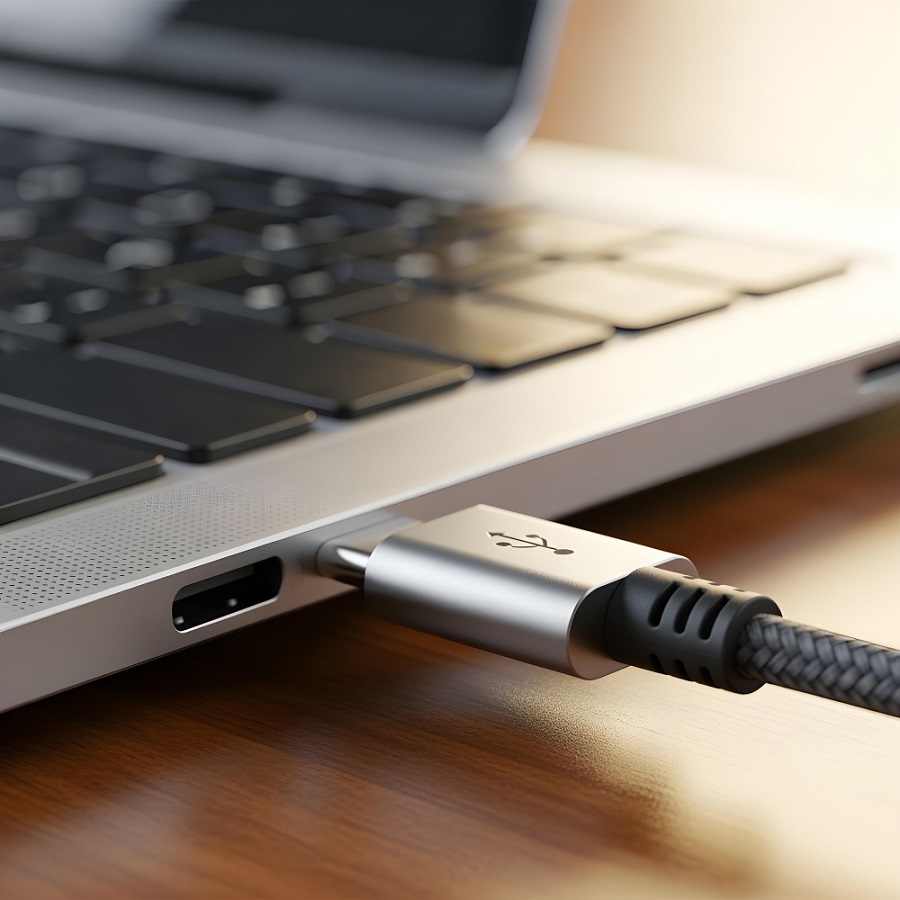
Your laptop or Windows PC has extra Universal Serial Bus (USB) ports. Don’t let them sit idle and collect dust. Use them as a powerful gateway to upgrades by plugging devices that can make work faster, sharper gaming graphics, and even turn your workspace a little more enjoyable.
The idle port on your computer could be the simplest tech upgrade you can make. Those extra ports can be opportunities to boost storage, improve connectivity, charge devices faster, and enable USB-enabled gadgets to level up your setup.
For example, adding a simple layer of security to your Windows PC is made easy with a USB flash drive as a physical key. Use a free tool called USB Raptor, and your computer will lock automatically when the USB drive is removed and unlock when it’s plugged back in.
How it works
USB Raptor stores a tiny encrypted file on a flash drive and checks for it in the background. The system locks instantly when the drive is unplugged. Plug it back in, and access is restored.
The app works with most USB drives, even those that already contain files. The good news is that it’s free, open source, and runs on Windows, including older versions like Windows 7.
Quick setup
Do the following steps to set it up:
- Insert a USB flash drive.
- Download and install USB Raptor.
- Open the app and agree to the terms.
- Create a backup password.
- Select your USB drive and click Create k3y file.
- Enable USB Raptor.
Once activated, removing the USB will lock your PC. If you lost the drive, the backup password can unlock the system.
Extra options
The USB Raptor also allows you to set a delay before locking; customize the lock screen and sounds; turn off the screen, or mute audio when locked; and add a PIN or password for added security.
USB Raptor turns a spare flash drive into a simple, physical lock for your Windows PC—no extra hardware needed.